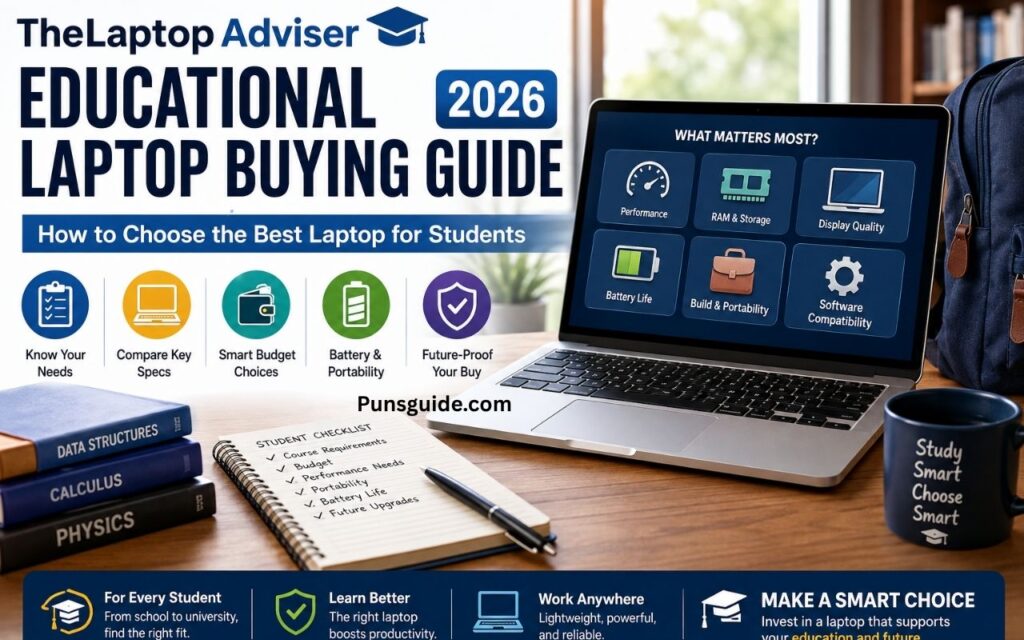
Choosing the best laptop for students in 2026 isn’t as simple as picking the newest processor or buying the most expensive model you can afford. A computer science student, a medical student, and a high school student can have completely different needs.
The right student laptop should fit the student’s coursework, software, daily routine, budget, and plans for the next several years. A lightweight laptop with excellent battery life might be perfect for a student who spends all day moving between classrooms. Meanwhile, an engineering student may need a heavier machine with a dedicated GPU because CAD and 3D applications can demand far more graphics power.
This educational laptop buying guide breaks the decision down into practical terms. Instead of chasing specifications for their own sake, you’ll learn which features matter, where you can save money, and when paying more genuinely makes sense.
Start With the Student, Not the Laptop
Before comparing processors, displays, or storage capacities, figure out what the student will actually do with the machine. That’s the single most useful rule in any student laptop buying guide.
For everyday coursework, a modern mid-range processor, 16GB of RAM, a 512GB SSD, and a good 14-inch display will cover a huge range of academic tasks. Research, presentations, spreadsheets, video calls, PDFs, browser tabs, and writing assignments don’t require a workstation.
Things change quickly once specialized software enters the picture. CAD, 3D modeling, video production, virtualization, advanced programming, and engineering simulations can push a laptop much harder. In those cases, the laptop requirements for students should come from the actual applications rather than a generic specification chart.
What Will the Laptop Actually Be Used For?
Start with a normal school day. If the student opens a browser, Microsoft Word, PowerPoint, Spotify, a PDF reader, and a video call at the same time, the laptop needs enough RAM for multitasking rather than extreme graphics performance.
Students who work with large spreadsheets, development environments, databases, virtual machines, or creative applications need more headroom. A machine that feels wonderfully fast while browsing can become frustrating once several demanding programs are running together.
There’s also a simple question worth asking: will the laptop be carried everywhere? A powerful 16-inch performance laptop may handle demanding coursework beautifully. Carrying it across campus every day is another story.
Check Academic Software Before Buying
This step can prevent an expensive mistake. Before choosing Windows, macOS, ChromeOS, or Linux, check the student’s university or school software requirements.
Microsoft 365, Google Workspace, browsers, and common communication platforms run across several platforms. Specialized applications can be much less flexible. Autodesk’s current AutoCAD 2026 requirements, for example, show a major jump between basic and recommended hardware, including 32GB of RAM as the recommended memory level for Windows.
That difference illustrates an important point: software compatibility comes before laptop specifications. Don’t buy the hardware first and hope the coursework will cooperate later.
Student Laptop Specifications for 2026
For most people searching for the best laptop for students 2026, the sweet spot isn’t at either extreme. Entry-level hardware can feel restrictive after a few years, while premium components can consume money without improving everyday academic work.
A sensible mainstream configuration looks like this: a current mid-range CPU, 16GB RAM, a 512GB SSD, integrated graphics, a quality 14- or 15-inch display, a 1080p webcam, and strong battery life. Students with demanding workloads should move upward from there.
| Component | Basic Student | Recommended Student | Demanding Student |
|---|---|---|---|
| Processor | Modern entry-level CPU | Modern mid-range CPU | High-performance CPU |
| RAM | 8GB | 16GB | 32GB+ |
| Storage | 256GB SSD | 512GB SSD | 1TB+ SSD |
| Graphics | Integrated | Strong integrated | Dedicated GPU if required |
| Display | Full HD IPS | 1080p–1600p IPS/OLED | High-quality IPS/OLED |
| Webcam | 1080p preferred | 1080p | 1080p or better |
| Connectivity | USB-C, USB-A | USB-C, USB-A, HDMI | USB-C/USB4/Thunderbolt as needed |
These aren’t hard minimums. They’re sensible buying targets. A Chromebook used primarily for web-based schoolwork can have a different configuration from a Windows workstation used for engineering.
Processor: How Much CPU Power Do Students Need?
The laptop processor handles general computing tasks, from opening applications to compiling code and processing spreadsheets. For ordinary academic work, a modern mid-range processor offers plenty of performance.
Current processor families from Intel, AMD, and Apple can all provide excellent student experiences. You’ll encounter names such as Intel Core Ultra, AMD Ryzen, and Apple’s M-series chips. Don’t assume that a higher number automatically means a better laptop. Processor generation, power limits, cooling, and the laptop’s overall design also influence real-world performance.
For a typical student, prioritize balanced performance and battery efficiency. A processor that delivers strong everyday speed without turning the laptop into a portable space heater is often more useful than a chip designed for workloads the student will never run.
RAM: Is 8GB Enough for College?
8GB RAM can still work for basic browsing, documents, streaming, and lightweight schoolwork. It’s particularly reasonable in some ChromeOS systems designed around web-based applications.
However, 16GB RAM is the better target for most new Windows and macOS student laptops in 2026. It gives you considerably more room for browser tabs, office applications, video calls, coding tools, PDFs, and background processes.
Students working with virtual machines, large development environments, engineering applications, professional creative software, or serious multitasking should consider 32GB RAM. Memory isn’t glamorous, but running out of it can make a fast processor feel surprisingly sluggish.
Storage: How Much SSD Space Does a Student Need?
A 256GB SSD is usable, although it can become cramped once applications, projects, downloads, and media begin piling up. For many students, 512GB SSD storage represents the better balance.
A 1TB SSD becomes more attractive for engineering students, photographers, video editors, architecture students, and anyone who keeps large project files locally. Cloud storage helps, but it shouldn’t be treated as a substitute for sufficient internal storage.
Avoid buying an old laptop with a mechanical hard disk drive as the primary system drive unless there’s an unusual reason to do so. An SSD laptop starts faster, launches applications more quickly, and generally feels much more responsive.
Integrated Graphics vs Dedicated GPU
Most students don’t need a dedicated graphics card. Modern integrated graphics can comfortably handle office applications, streaming, presentations, web applications, and many lighter creative workloads.
A dedicated GPU becomes useful when coursework involves demanding 3D modeling, rendering, advanced video editing, serious CAD work, simulation, or machine learning workloads that benefit from GPU acceleration. Gaming can also justify a dedicated GPU if it’s an actual priority.
Don’t buy a gaming laptop simply because the graphics card looks impressive on the specification sheet. Gaming hardware often adds weight, heat, noise, and cost. If the student’s workload doesn’t need it, that money could produce a better display, larger SSD, or longer battery life instead.
Choose the Right Display for Long Study Sessions
A laptop screen becomes surprisingly important when you’re staring at it for hours every day. A mediocre display might not stop an assignment from getting finished, but it can make every assignment less pleasant.
For a best laptop screen for students, look beyond resolution. Brightness, viewing angles, color quality, scaling, reflections, and aspect ratio all influence the experience.
14 Inches vs 15.6 or 16 Inches
A 14-inch laptop is one of the safest choices for college students because it balances screen space and portability. It fits comfortably into most backpacks while providing enough room for documents, research, and split-screen work.
A 15.6-inch or 16-inch laptop makes more sense when screen real estate matters. Engineering drawings, spreadsheets, timelines, coding environments, and creative applications benefit from additional workspace. The trade-off is simple: bigger screens usually mean more weight and less convenient portability.
IPS vs OLED
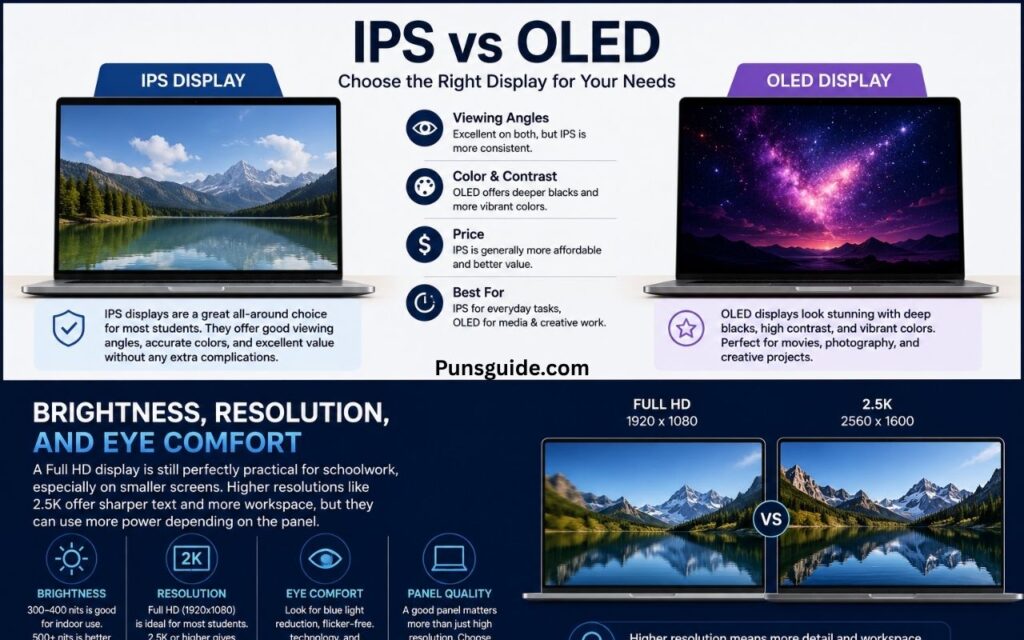
An IPS display remains an excellent choice for most students. Good IPS panels offer strong viewing angles, dependable color, and sensible pricing without introducing unnecessary complications.
An OLED laptop can look spectacular. Deep blacks, strong contrast, and vibrant colors make movies, photography, and creative work particularly appealing. However, OLED isn’t automatically better for every student. If two otherwise similar laptops differ substantially in price, a high-quality IPS panel may offer better value.
Brightness, Resolution, and Eye Comfort
A Full HD display remains perfectly practical for schoolwork, especially on smaller screens. Higher resolutions such as 2.5K can provide sharper text and additional workspace, but they may also consume more power depending on the panel.
Brightness matters when classrooms have strong overhead lighting or when you work near windows. An anti-glare surface can also make long study sessions more comfortable by reducing distracting reflections.
Refresh rate deserves less attention. A 120Hz display feels smoother when scrolling and navigating the desktop, but students shouldn’t sacrifice battery life, color quality, or price simply to get a high refresh rate.
Battery Life and Portability Matter Every Day
A laptop can have a brilliant processor and still be a poor student computer if it constantly searches for an outlet. Battery life for college students matters because a typical day rarely looks like a manufacturer’s controlled test.
Video calls, high screen brightness, dozens of browser tabs, background applications, and demanding software can reduce runtime considerably. That’s why independent real-world testing is more useful than blindly trusting a headline battery figure.
Fast charging helps too. A laptop that can recover a meaningful amount of battery during a short break is much easier to live with than one that needs hours beside a wall socket.
USB-C Charging Adds Convenience
USB-C charging can simplify life when the laptop supports it properly. One charger can potentially power a laptop, phone, tablet, and other accessories.
Just remember that USB-C describes the connector, not everything the connector can do. Check whether the specific port supports charging, display output, high-speed data, or all three.
Build Quality: The Laptop Has to Survive Student Life
Students don’t always treat laptops like delicate electronics. They move them between classrooms, libraries, bedrooms, coffee shops, dorm rooms, and backpacks. That makes laptop durability more than a marketing phrase.
Aluminum can provide a premium feel and good rigidity, while well-designed plastic can remain light and durable. The material matters less than the engineering behind it. Look closely at the hinge, keyboard deck, lid, port placement, and overall chassis flex.
Thin-and-Light vs Performance Laptops
A thin and light laptop works beautifully for students who value portability. It can slip into a backpack without turning the commute into a workout.
Performance laptops make sense when sustained computing power is essential. They typically use stronger cooling systems and more powerful components, but that comes with additional weight. For an engineering student who needs CAD every afternoon, the extra bulk may be worthwhile. For an English major who mainly writes papers, it probably isn’t.
Keyboard, Touchpad, Webcam, and Audio
Specifications tell only part of the story. A student might type thousands of words every semester. That makes the laptop keyboard one of the most important pieces of hardware to test.
Look for comfortable key spacing, consistent feedback, useful travel, and a sensible layout. A backlit keyboard is helpful in dim rooms, while a number pad can be valuable for accounting and spreadsheet-heavy work.
The touchpad matters just as much. A good precision touchpad makes navigation feel natural and reduces the need to carry a mouse everywhere. For online learning, prioritize a 1080p webcam, clear microphones, and speakers that make lectures and group calls easy to follow.
Windows, macOS, ChromeOS, or Linux?
There isn’t a universally best operating system for students. The correct choice depends heavily on software requirements and the student’s workflow.
Windows offers the broadest hardware selection and strong compatibility with business, engineering, gaming, and technical applications. macOS provides an excellent environment for many creative, academic, and programming workflows. ChromeOS shines when education revolves around browser-based applications and Google services. Linux remains attractive for technically inclined users who want control and a development-focused environment.
Windows Laptops
A Windows laptop for students is usually the safest choice when software compatibility is uncertain. There’s a huge range of hardware, from inexpensive school machines to powerful mobile workstations.
One important distinction deserves attention: Microsoft’s Windows 11 minimum requirements aren’t sensible buying recommendations. Microsoft lists 4GB of RAM and 64GB of storage among the minimum requirements, along with TPM 2.0 and other requirements.
A new student laptop should generally exceed those bare minimums by a wide margin. Think of Microsoft’s requirements as the floor required to run Windows, not the target specification for a laptop you’ll use throughout college.
MacBooks and macOS
A MacBook for students can be an excellent option, particularly for writing, research, creative work, programming, and general productivity. Apple’s Apple Silicon processors also deliver a strong combination of performance and efficiency.
The catch is compatibility. Before buying a Mac, check every specialized application required by the student’s program. Don’t assume that software used by classmates will necessarily have an identical macOS version.
Chromebook for Students
A Chromebook for students can be an excellent budget choice when coursework lives primarily in a browser. Google Docs, Sheets, Slides, Classroom, email, research, streaming, and web applications are natural fits.
Chromebook Plus raises the hardware bar. Google’s current eligibility specifications include at least 8GB of RAM, 128GB of storage, a 1080p webcam with temporal noise reduction, and a Full HD IPS display or better.
ChromeOS becomes less attractive when a degree depends on specialized desktop software. That’s the line to watch.
Linux for Technical Students
Linux can be a terrific programming laptop environment. Developers often appreciate its command-line tools, package managers, containers, and flexibility.
It isn’t automatically the right choice, though. If a course requires proprietary Windows software, switching operating systems can create unnecessary friction. Linux makes the most sense when the student understands the environment and knows the required tools support it.
Software Compatibility Should Decide the Platform
The safest approach is simple: software first, laptop second. Make a list of the applications the student expects to use during the next few years.
Microsoft 365 supports current Windows and recent macOS versions, but individual applications can have their own requirements. Microsoft’s published requirements currently list Windows 11 and recent macOS versions among supported desktop environments.
For general academic work, Microsoft Office, Google Workspace, Zoom, Microsoft Teams, and Google Meet are rarely the deciding factor. Specialized programs such as AutoCAD, SolidWorks, MATLAB, professional Adobe applications, development environments, and virtualization software deserve much closer attention.
Engineering and Architecture Software
Engineering students should never buy a laptop solely from a generic “engineering laptop” list. Check the requirements of the actual applications used in the program.
AutoCAD 2026 provides a good example. Autodesk lists 8GB RAM as basic but recommends 32GB RAM, while recommended graphics hardware is substantially stronger than the basic configuration. Large datasets and 3D modeling can demand still more memory and graphics capability.
Programming and Development
A basic coding laptop can be surprisingly affordable. Writing Python, Java, JavaScript, or web applications doesn’t automatically require a dedicated GPU.
The picture changes when students use Docker, virtual machines, local databases, Android development environments, or multiple IDEs simultaneously. Here, additional RAM and a capable multi-core processor become more valuable than flashy graphics hardware.
Ports and Wireless Connectivity
A good USB-C laptop gives students flexibility, especially when it supports charging, display output, and high-speed data. USB4 and Thunderbolt can be particularly useful for external monitors, docks, and fast storage.
Don’t overlook USB-A. Universities still contain plenty of ordinary peripherals, flash drives, classroom equipment, and older accessories. HDMI can also save the day when connecting directly to a projector or monitor.
Wi-Fi 6 and Wi-Fi 6E are already strong choices for most students. Wi-Fi 7 can provide more advanced wireless capabilities, but it isn’t something every student needs to prioritize. The campus network and router have to support the relevant technology before the laptop can take advantage of it.
Laptop Security for Students
A stolen laptop can be inconvenient. A stolen laptop containing years of coursework, personal documents, passwords, and financial information can be much worse.
Features such as a fingerprint reader, Windows Hello, a physical webcam shutter, secure boot, TPM 2.0, and device encryption can strengthen the security of a student laptop. A fingerprint sensor also makes secure login less annoying, which matters because convenience often determines whether people actually use security features.
TPM 2.0 is particularly relevant on modern Windows machines because it’s part of Windows 11’s hardware requirements.
AI Laptops and NPUs: Should Students Care?
The AI laptop has become a major part of the 2026 laptop market. But the presence of an NPU doesn’t automatically make a laptop better for school.
An NPU, or Neural Processing Unit, is designed to accelerate certain AI workloads efficiently. Instead of asking the CPU or GPU to handle every AI-related task, supported software can send appropriate workloads to the NPU.
Microsoft’s Copilot+ PC category requires an NPU capable of more than 40 trillion operations per second (TOPS) for many of its advanced AI experiences.
What Can On-Device AI Actually Do?
On-device AI can support features such as real-time effects, translation, transcription, image generation, and other supported AI workloads. The advantage is that some processing can happen locally rather than entirely in the cloud.
For students, useful examples include AI transcription tools, accessibility features, meeting effects, and certain writing or productivity applications. The practical benefit depends on the software actually used.
Are AI Laptops Worth Paying More For?
Sometimes. Don’t pay a premium for an NPU while accepting 8GB RAM or a tiny SSD when the student needs 16GB and 512GB.
For a student buying a laptop that will last several years, an NPU can be a reasonable piece of future-proofing if it comes alongside strong core hardware. It shouldn’t replace the fundamentals.
In other words, AI hardware is a bonus, not a substitute for good hardware.
How Much Should a Student Spend on a Laptop?
The best budget laptop for students isn’t necessarily the cheapest model. Extremely low prices often mean compromises in display quality, storage, memory, build quality, or battery life.
For basic schoolwork, an affordable Chromebook or entry-level Windows machine can make sense. For college students who want a laptop that remains comfortable for several years, the mainstream range is usually the smarter place to shop.
Premium laptops become worthwhile when the student values a lighter chassis, better display, stronger battery life, higher build quality, or more powerful hardware. Performance-class machines deserve consideration when coursework genuinely requires them.
Think about total cost of ownership, too. A laptop that costs slightly more but lasts longer may be cheaper than replacing an underpowered machine halfway through a degree.
How Long Should a Student Laptop Last?
A reasonable target is four years for a college laptop, although a well-built machine can remain useful longer. Longevity depends on the original configuration, battery health, software support, physical condition, and workload.
This is why buying adequate hardware matters. A student who starts with 16GB RAM and a 512GB SSD has more breathing room than someone who chooses a cramped entry-level configuration simply to save money on day one.
Upgradeability Matters
Check whether the RAM and SSD are replaceable before buying. Some modern laptops solder memory directly to the motherboard, which can limit future upgrades.
An accessible SSD can extend the useful life of a laptop by making storage expansion inexpensive. A replaceable battery can also be valuable after several years of daily charging.
Warranty and Repair Support
Warranty coverage is easy to ignore when everything works. When the laptop stops charging during finals week, it suddenly becomes very important.
Look at the manufacturer’s service network, warranty terms, repair turnaround, parts availability, and accidental-damage options. Long-term laptop reliability isn’t only about whether the chassis feels solid on day one.
New, Refurbished, or Used?
A new laptop provides the simplest buying experience. You get a fresh battery, current hardware, manufacturer support, and a full warranty.
A reputable refurbished laptop can offer exceptional value, particularly when buying a higher-quality business machine that originally cost much more. However, the refurbisher’s warranty and testing process matter enormously.
Used machines require more caution. Check battery health, screen condition, keyboard function, ports, storage health, charger compatibility, BIOS locks, activation locks, and operating-system support before handing over your money.
Common Student Laptop Buying Mistakes
The biggest mistake is buying based on a specification headline. A laptop advertised with a powerful processor can still have poor battery life, a dim display, 8GB of soldered RAM, or inadequate storage.
Another common mistake is assuming every student needs a dedicated GPU. Most don’t. Likewise, chasing 4K resolution or a 144Hz refresh rate can make little sense when the student’s real priority is comfortable reading and all-day battery life.
A few other mistakes deserve special attention:
- Buying a Mac without checking specialized course software.
- Buying a Windows ARM laptop without checking application compatibility.
- Choosing 8GB RAM for a demanding four-year workload.
- Buying only 256GB of storage for large projects.
- Ignoring the keyboard and touchpad.
- Assuming every USB-C port supports charging and display output.
- Forgetting warranty and repair support.
- Paying extra for AI features while compromising core specifications.
The common thread is simple: don’t buy the laptop’s marketing story. Buy the configuration that matches the student’s actual life.
Recommended Configurations by Student Type
Everyday Students
For general school and college work, aim for a modern mid-range processor, 16GB RAM, a 512GB SSD, integrated graphics, and a good 14-inch IPS display.
That combination handles research, documents, presentations, video calls, streaming, and everyday multitasking without unnecessary expense.
Business and Accounting Students
Business students should prioritize CPU performance, memory, battery life, and display quality. Accounting students may also appreciate a full-size keyboard with a number pad.
A 15- or 16-inch display can be useful for large spreadsheets, although a 14-inch model remains better for students who carry their laptop everywhere.
Medical Students
Medical students typically benefit from a lightweight laptop with excellent battery life, a comfortable keyboard, and enough RAM for extensive browser and PDF use.
A strong display is particularly useful when reading research papers and lecture materials. Unless the course specifically requires demanding technical software, a dedicated GPU usually isn’t necessary.
Computer Science Students
Computer science students should consider 16GB RAM the practical starting point, especially if they expect to run IDEs, development servers, databases, containers, or virtual machines.
Those working with machine learning, large local models, GPU computing, or advanced simulations may need a dedicated GPU. Otherwise, CPU performance, RAM, storage, and battery efficiency should take priority.
Engineering and Architecture Students
This group should check software requirements before anything else. CAD, simulation, 3D modeling, and rendering can significantly increase hardware demands.
For demanding workloads, 32GB RAM, a strong CPU, fast SSD, and capable dedicated GPU can be justified. Autodesk’s AutoCAD 2026 requirements demonstrate why generic student specifications aren’t enough for technical programs.
Graphic Design and Video Students
Creative students should prioritize the display first, then RAM, GPU performance, and storage. Color accuracy matters when the screen is part of the creative workflow.
Video projects can consume storage quickly, so 1TB is often more comfortable than 512GB. An SD card reader and fast USB-C or Thunderbolt connectivity can also make moving large media files much easier.
TheLaptopAdviser 10-Minute Laptop Buying Method
If all the specifications start to blur together, use this sequence.
First, identify the software. Then choose the operating system that supports it. Next, set the hardware level based on the workload. From there, choose RAM, storage, graphics, display size, battery capacity, ports, and portability.
Finally, compare the complete machines rather than individual components. A laptop with slightly less CPU performance but a much better screen and battery can be the better student computer.
The goal isn’t to win a benchmark chart. It’s to buy a machine that makes studying easier.
TheLaptopAdviser Student Laptop Buying Checklist
Before purchasing a laptop for students, run through these questions:
| Area | What to Check |
| Coursework | Required applications and platforms |
| CPU | Modern processor appropriate for workload |
| RAM | 16GB for most mainstream students |
| Storage | 512GB SSD for most students |
| Graphics | Integrated unless coursework needs dedicated GPU |
| Display | Comfortable brightness and good viewing angles |
| Battery | Strong real-world endurance |
| Webcam | 1080p preferred |
| Keyboard | Comfortable for long writing sessions |
| Weight | Suitable for daily carrying |
| Ports | USB-C plus required USB-A/HDMI/SD |
| Security | Fingerprint, Windows Hello, TPM, encryption |
| Upgradeability | RAM, SSD, and battery options |
| Warranty | Coverage and repair support |
| Software | Compatibility confirmed before purchase |
Keep this checklist beside you while comparing laptops. It prevents one flashy feature from overshadowing five things you’ll use every day.
Frequently Asked Questions About Student Laptops
What Are the Best Laptop Specifications for Students in 2026?
For most students, a modern mid-range processor, 16GB RAM, 512GB SSD, integrated graphics, and a good 14- or 15-inch display make an excellent starting point.
Students with engineering, architecture, creative, or advanced computing workloads should increase RAM, storage, and graphics performance according to their software requirements.
Is 8GB RAM Enough for College Students?
It can be enough for basic schoolwork, particularly on ChromeOS. However, 16GB RAM is the safer recommendation for most new Windows and macOS student laptops in 2026.
If the laptop is expected to last through a four-year degree, additional memory provides useful headroom for increasingly demanding applications.
Is 512GB SSD Enough for College?
For most students, yes. A 512GB SSD provides a comfortable balance between capacity and price.
Students who store video footage, photography libraries, CAD projects, large datasets, or virtual machines should consider 1TB or more.
Do Students Need a Dedicated Graphics Card?
Most don’t. Integrated graphics are perfectly suitable for general academic work.
A dedicated GPU becomes worthwhile for demanding CAD, 3D rendering, video editing, simulation, machine learning, or gaming workloads.
What Is the Best Screen Size for Studying?
A 14-inch display is an excellent all-around choice because it combines useful workspace with portability.
Choose 15.6 or 16 inches when spreadsheets, design applications, engineering drawings, or split-screen multitasking are more important than carrying convenience.
Are AI Laptops Worth It for Students?
They can be, but don’t make the NPU the deciding factor. Prioritize RAM, storage, processor performance, battery life, display quality, and software compatibility first.
A capable AI laptop for students can provide useful on-device features and better future compatibility with emerging software. Microsoft’s Copilot+ PC category currently centers on systems with NPUs capable of 40+ TOPS.
How Long Should a Student Laptop Last?
Four years is a reasonable target for a college laptop. Higher-quality models with adequate RAM, sufficient storage, good battery management, and strong support can remain useful beyond that.
The best way to extend the lifespan is to avoid buying a machine that’s already close to its limits.
Should Students Buy Windows, Mac, or Chromebook?
Choose Windows when broad software compatibility matters. Choose macOS when its software ecosystem fits the student’s work. Choose ChromeOS when most coursework happens online.
The operating system should follow the academic workload, not the other way around.
Final Verdict: Choose for the Workload, Not the Hype
The best student laptop in 2026 isn’t necessarily the fastest, thinnest, cheapest, or most expensive machine. It’s the one that fits the student’s real workload without creating unnecessary compromises.
For most students, 16GB RAM, a 512GB SSD, a modern mid-range processor, integrated graphics, a quality display, strong battery life, and a comfortable keyboard create a remarkably capable package. That’s the sweet spot.
From there, adjust intelligently. Engineering and architecture students may need 32GB RAM and a dedicated GPU. Creative students may benefit more from a high-quality OLED or color-accurate IPS panel and additional storage. Computer science students may value RAM and virtualization performance. Online learners should pay close attention to the webcam, microphone, speakers, and wireless connectivity.
Most importantly, check the software before buying. That one step can save you from an expensive incompatibility later.
A laptop is a tool. For a student, it’s also a daily companion through lectures, deadlines, late-night study sessions, group projects, presentations, and perhaps a few questionable amounts of coffee. Choose one with enough performance to stay comfortable, enough battery to survive the day, and enough headroom to remain useful long after the excitement of the unboxing has disappeared.

Jhon AJS, the creative mind behind Puns Guide, is an experienced blogger with a knack for wordplay and witty humor. Passionate about blending laughter with language, he crafts engaging pun filled content that entertains and inspires readers. With years of blogging expertise, Jhon continues to share clever insights, making every visit to Puns Guide a fun and refreshing experience.